A brand-new firm first enters its name and chooses a plan (or pays per report), and a pop-up asks about marketing emails. Answer those first.
Step by step
- Open Clients and click New client.
- Enter the client's First name and middle initial, Last name and Company name. The other fields are optional, but add an email address if you want to email them a questionnaire. Click Save client.
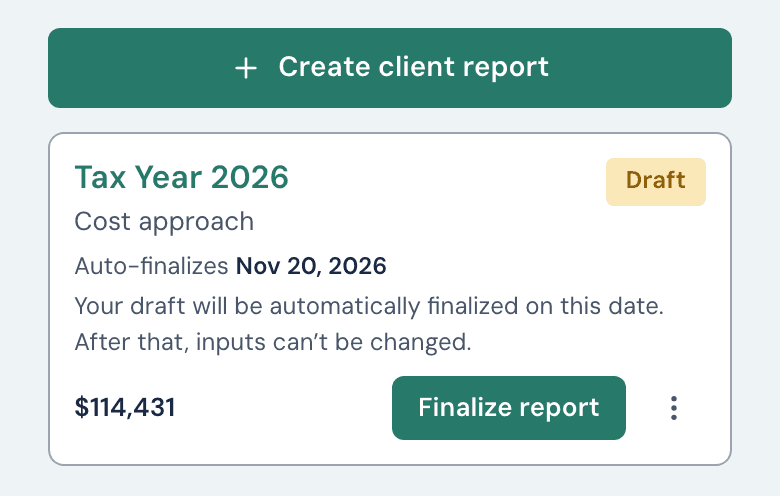
- On the client's page, click Create client report. The pop-up says "This uses 1 of your reports." Click Create report. The report is used as soon as you confirm. If you delete it before generating, you may get it back (see Buying more reports). A firm that pays per report and hasn't bought one yet sees Ready to get started? instead. Click Buy 1 report, or choose a plan with Subscribe to, then click Create client report again.
- Check the Report year. It starts on the current year, and you can change it. Then choose how to gather the details:
- I'll answer the questions: you fill in the answers.
- Send it to the client: they answer from a link. See Sending your client the questionnaire.
- If you're answering, click Continue through short screens: Basic Info (it needs the entity type, state and county), Approach (see Which approach to use), then Tasks and Allocation for Cost, Overall Role for Market, or Financial Data for Income.
- On the last screen, click Generate report. The report page opens with the figure.
- Click Download draft PDF to check it (it's marked DRAFT). To change an answer, click Edit report. Once you change one, the figure and the auto-finalize date go until you click Generate report again. Generating again doesn't use another report.
- When you're happy, click Finalize report and confirm. This can't be undone. If you don't finalize, the draft finalizes itself 30 days after you last generated it (see the 30-day auto-finalize).
If your client answered
Whoever sent the link gets an email, and the report reads Ready to review. Click Review & generate, then Continue through the screens to Generate report.
If you're out of reports
The Account owner can buy more. Everyone else is told to contact them.
Still stuck?
Email help@wageproof.com, or send us a message from the ? button on any page of the app.