Invite someone
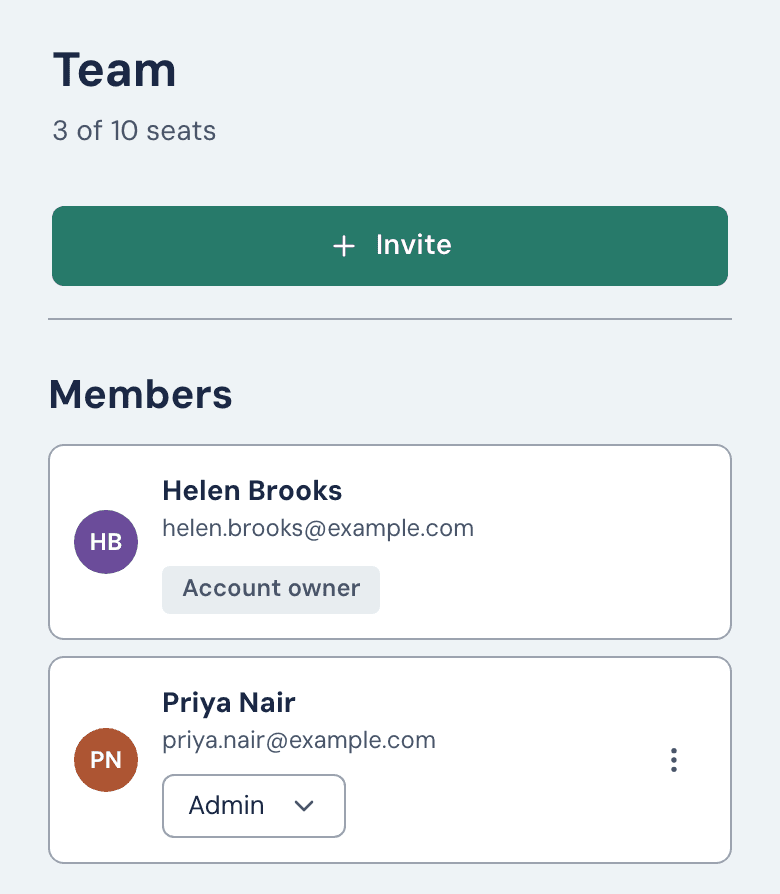
If your plan has one seat, the Team page shows Grow your team instead of Invite. Pricing shows which plans include more seats.
- Open Team and click Invite.
- Enter their Email, choose a Role (Member or Admin), and click Invite.
- They get an email, and the link lasts 14 days. They click Sign up to accept, create a login with the email address you invited, tick the Terms box and click Accept invitation. Someone with an existing WageProof account can't join this way: email help@wageproof.com.
A row under Pending invitations has a menu with Resend invitation (new link, fresh 14 days) and Revoke invitation.
Roles
| What they can do | Account owner | Admin | Member |
|---|---|---|---|
| Start, send, finalize and delete reports | Yes | Yes | Yes |
| Invite, remove and change roles | Yes | Yes | No |
| Billing and buying | Yes | Plan and report count only | Plan and report count only |
To change a role, choose Admin or Member from the dropdown on the person's row, then confirm with Make admin or Make member. Nobody can remove the Account owner or themselves; to leave, ask an Admin.
Seats
Your plan sets how many people you can have, and open invitations count toward it. The Team page shows how many are used, for example "3 of 10 seats". When they're all taken, remove someone, revoke an invitation or upgrade before inviting anyone else.
If the team outgrows your plan (for example, after the plan ends), everyone keeps access, but nobody new can join until the team fits again.
Remove someone
Open the row's menu, click Remove from team, then Remove. Their login closes at once. The firm keeps everything they created, and the seat frees up.
Hand over ownership
Only the Account owner can. Open a member's menu, click Make Account owner, then Transfer ownership. They take over billing and renewal notices, and you stay an Admin. The plan, reports and invoice history don't change, and nothing is charged. Only the new owner can hand it back.
Change your login email
Each person changes their own. Open Settings and click Manage account. Under Email addresses, click Add email address, enter the new address, then enter the code we email to it. Open the new address's ⋯ menu and click Set as primary; you can remove the old address from its own menu. Our emails then go to the new address, and so do billing receipts if you're the Account owner.
Still stuck?
Email help@wageproof.com, or send us a message from the ? button on any page of the app.