Set it up
- Open Branding.
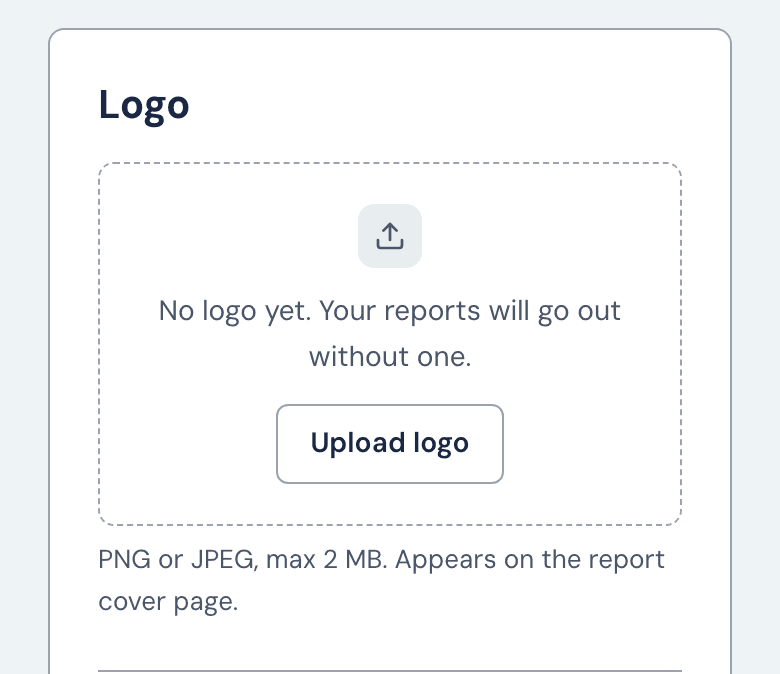
- Under Logo, click Upload logo. Use a PNG or JPEG under 2 MB, between 100 and 5,000 pixels on each side, and no more than 10 times wider than tall (or the other way round). A file that breaks a limit is refused, and your current logo stays. Then pick a size: Small, Medium, Large or Extra large. Replace and Remove change it later, and Remove asks you to confirm with Remove logo.
- Under Colors, set the Primary color and Accent color. Reset to defaults goes back to navy and blue, after you click Yes to confirm.
- Under Prepared by name, type the name for the cover and page headers. Leave it blank to use your firm name. It can be up to 50 characters.
- Changes save themselves. "Changes saved" confirms it.
Everyone sees the cover preview beside the settings, with a made-up sample client. Admins and the Account owner can also click Download sample report to see your branding on a full sample.
Where it shows
Your logo goes on the cover. Your name goes on the cover and in the header of each report page, except the appendices. Your colors replace WageProof's. Your client's questionnaire still looks like WageProof, but it says "Prepared by" with your name.
Drafts and final reports
A draft follows your current branding. A finalized report keeps the branding it had when you finalized it, even if you change it later. If your logo can't load, a draft prints without it, but Finalize report stops and asks you to upload it again.
If your plan doesn't include branding
The Branding page shows a White-label reports card. The Account owner sees Upgrade your plan. Everyone else is told to contact them. Pricing shows which plans include branding.
Reports then carry WageProof's letterhead, with your firm's name in the disclaimer. Your settings are kept, and come back if branding does. When the plan ends, or moves at renewal to one without branding, drafts go unbranded and finalized reports stay as they were. A failed payment doesn't turn branding off.
Still stuck?
Email help@wageproof.com, or send us a message from the ? button on any page of the app.